

How to Manage Your Quicklogo Account for Repeat Projects
Discover a step-by-step guide to manage, revisit, and iterate on logo projects using Quicklogo's account system. Essential for frequent logo needs.
Quicklogo Team
How to Manage Your Quicklogo Account for Repeat Projects
Imagine this: last quarter, you generated over 40 logos for various projects. Today, you’re scrambling to find that one perfect variant you loved—but it’s nowhere to be found. You’re not alone. Many founders and small-team operators face the chaos of scattered logo attempts across devices and email threads. Enter Quicklogo: not just an AI logo generator, but your dependable logo version control system.
With Quicklogo, you unlock a smarter way to manage your brand assets by creating an account-based workflow. This system keeps your logo iterations organized, allowing you to find, compare, and refine designs efficiently. Over the course of this post, we’ll guide you through setting up and using Quicklogo as a repeat-playbook for your branding needs. You’ll learn how to leverage account features like logo storage and organization to streamline your creative process, letting you iterate with confidence and speed. Dive in to revolutionize the way you manage your logo projects.
What You Gain from an Account-Based Logo Workflow
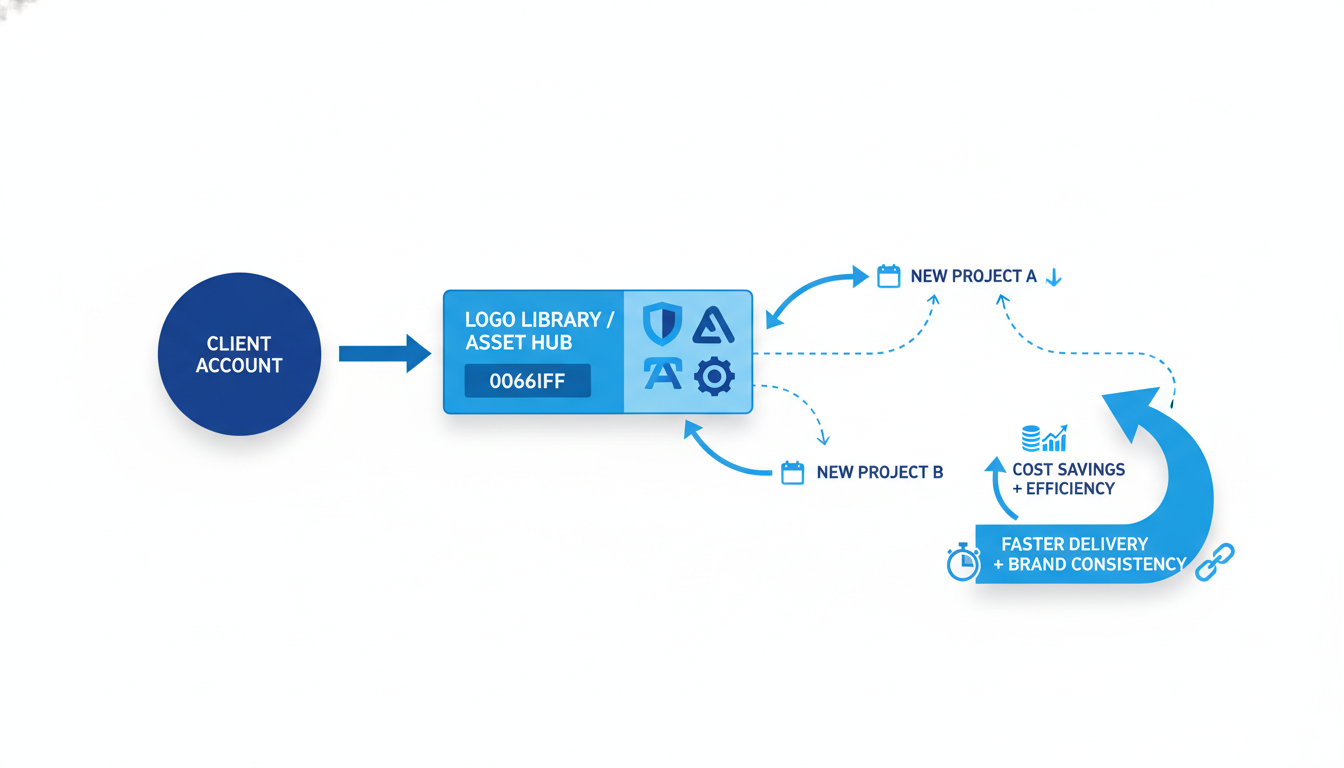
Imagine this: You recently crafted around 40 logos for various projects, and today you need that one variant you loved. Frustratingly, it seems to have vanished in the sea of files on your desktop! This is where an account-based workflow with Quicklogo changes the game. Instead of generating logos haphazardly, you can maintain a streamlined, systematized approach to managing your branding assets.
First, let's tackle the “lost logo” problem. When logos are scattered across email threads and randomly named folders, locating them later becomes a nightmare. An account-based workflow centralizes your logos, eliminating the chaos of scattered storage. By storing generated logos in your Quicklogo account, you can quickly return to prior creations, revisit past projects, and find specific logos with ease.
Moreover, this method supports efficient iteration and logo evolution. As a founder working on multiple projects—from product launches to seasonal campaigns—you need flexibility to iterate quickly without reinventing the wheel. With Quicklogo’s storage feature, your past logo iterations remain accessible, allowing you to build on and refine existing designs. This capability is invaluable for maintaining brand consistency over time.
Quicklogo also enhances your workflow through its focus on maintaining clear branding asset versions. The platform acts like a logo version control system, helping you track changes, organize logo generations by project, and manage iterations systematically. This ensures that whether you’re making minor adjustments or pivoting toward a new direction, everything is organized and accessible.
In essence, an account-based logo workflow with Quicklogo isn't just about creating logos—it's about cultivating a reliable, repeatable branding process. By utilizing Quicklogo’s account features, you can strategically manage your logos, iterate efficiently, and ensure that your branding evolves seamlessly over time.
Quicklogo Account Basics
Understanding the Quicklogo account system is essential for anyone managing repeat logo projects. Why? Because maintaining project continuity hinges on your ability to access past work seamlessly. Let’s dive into why a Quicklogo account is your best ally in creating a structured, efficient workflow.
Quicklogo Sign-In: The Key to Continuity
The first step in managing your logo projects efficiently is the Quicklogo sign-in. By signing in, you not only access the powerful AI tools Quicklogo offers but also unlock a hub where past work is stored and organized. Imagine you've created several logos last quarter and now need to revisit one of them. Without a centralized account, you'd be sifting through downloads and emails. Instead, Quicklogo lets you log in and find everything in one place, ensuring you never lose track of your creative endeavors.
Logo Storage: More than Just Saving
Quicklogo’s logo storage feature, as outlined in their Terms, is more than just a convenience—it’s a critical component for systematic logo evolution. This feature allows you to keep logos saved within your account, enabling a workflow where you can return to previous iterations and refine them over time. Whether you're launching a new product, rebranding, or developing seasonal campaigns, having all your logos accessible in one spot makes it simple to find and adjust them as needed—without starting from scratch each time.
Systematic Logo Evolution: Iteration Made Easy
By leveraging your Quicklogo account, you support a more systematic approach to logo evolution. Think of it as a version control system specifically for your branding. You can return to earlier versions, track changes, and develop new iterations strategically. This method helps maintain brand consistency across different projects and timeframes, ensuring that every logo fits cohesively within your brand’s broader visual identity.
Creating a robust, repeatable system for managing your logos through your Quicklogo account is more than an organizational tool; it’s a strategic advantage that enhances your ability to refine and strengthen your brand over time. Embrace this approach, and see how it transforms your logo management workflow from chaotic to streamlined.
Step-by-Step: Set Up Your First Repeatable Project in Quicklogo
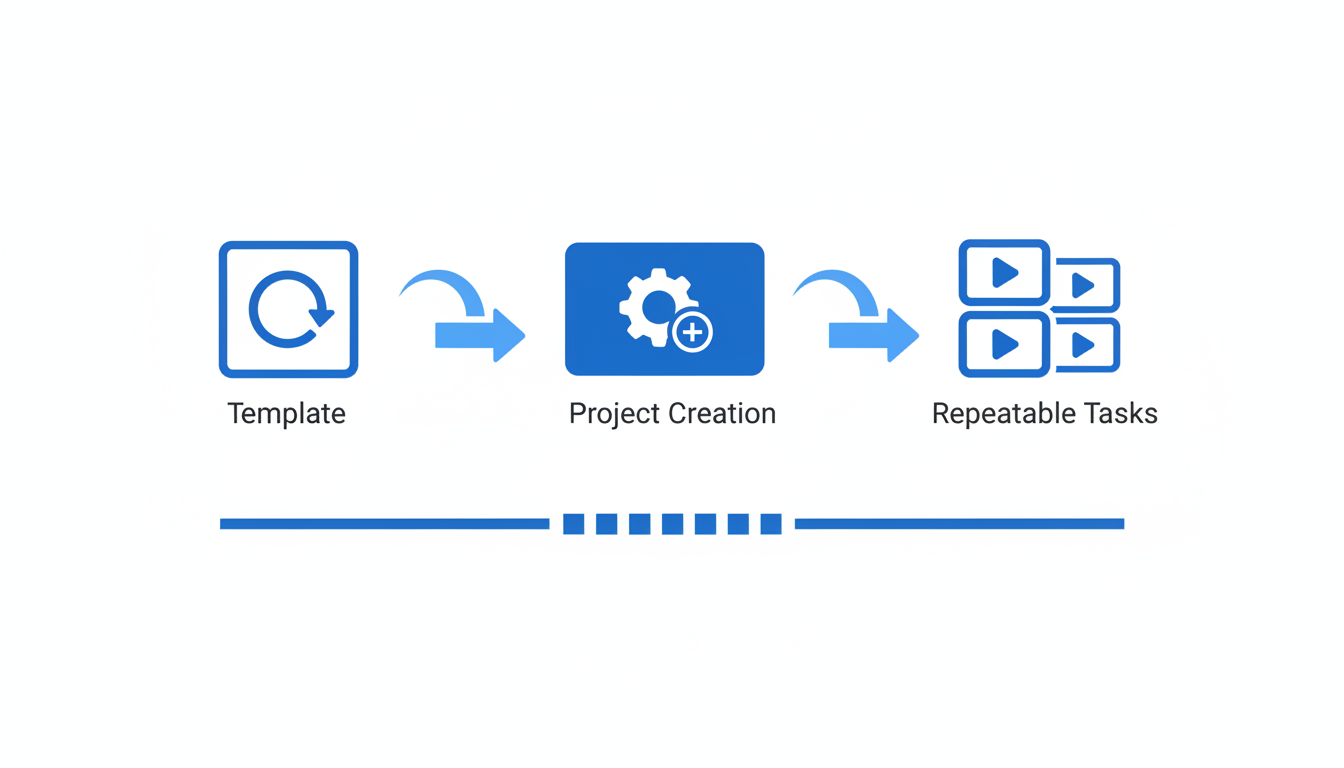
Establishing a structured process for managing your logo generator account with Quicklogo can dramatically streamline your branding efforts. Here's how to set up your workflow to ensure that each project not only generates innovative logos but does so in a way that's systematic and forward-thinking.
Start with a Project Brief
The first step in creating a repeatable project is crafting a solid project brief. This doesn't have to be lengthy but needs to encapsulate the essentials: what the logo should represent, the target audience, and any specific elements or styles you envision. Spend about 30 minutes jotting down these details. A well-articulated brief will guide the creative process and provide a reference point for any collaborator involved.
Pro Tip: A clear project brief prevents creative drift and aligns all efforts towards a coherent brand vision.
Generate Multiple Logo Options
Once you've nailed down your brief, it's time to let Quicklogo's AI engine work its magic. The platform is optimized for speed, allowing logos to be generated in seconds. Quicklogo leverages advanced machine-learning models trained on thousands of professional logos to offer tailored options that resonate with your project scope. Generating multiple options enables you to explore diverse design directions within a single session.
- Action Step: Within your Quicklogo account, input your project brief to start generating options. Review the selections and shortlist your top picks based on how well they meet the brief.
For detailed guidance on using Quicklogo’s generation features, refer to How to Generate a Logo Online with Quicklogo.
Choose a Path Forward
After generating various logo options, selecting a direction may feel daunting due to the sheer variety. This is why refining your choices early on is crucial. Compare the options against your project brief and get feedback from stakeholders if needed. Narrow down the options to one or two that truly encapsulate your brand essence.
- Action Step: Utilize Quicklogo to save your chosen logos directly within your logo generator account for easy access and further refinement.
For more on decision-making strategies, check the 9 Steps to Simplify Logo Decisions from AI-Generated Options.
Refine Using Quicklogo’s Editing Tools
Quicklogo isn't just about generating logos—it's about refining them, too. According to the platform’s Terms, you'll find customization tools that allow you to adjust colors and elements to better align the logo with your visual brand identity. Remember, the power of Quicklogo lies in its balance of speed and personalization.
- Action Step: Use the editing features within your logo generator account to make tweaks, ensuring the final product is as polished as your brand requires.
Key Takeaway: Iteration is your friend—use Quicklogo’s tools to refine designs without the chaos of starting from scratch.
By following these steps, your first project within Quicklogo won't just end with a logo—it begins a predictable, efficient cycle for future branding needs. Eager to try this out? Simply sign in to your Quicklogo account and embark on your next innovative project.
Step-by-Step: Return to a Past Project and Iterate Safely
Venturing back into a past project in Quicklogo is akin to navigating a well-organized library of your brand’s journey. Let’s walk through the steps to effortlessly find your previous work and refine your brand’s visual identity without losing valuable iterations.
Find the Last “Approved” Generation
The starting point in your logo iteration workflow is locating the last approved version of your logo. Within Quicklogo, your saved logos in your account are readily accessible. Here’s how you can efficiently find the approved design:
Sign In: The first step is to log into your Quicklogo account. This action opens up the archive of all your previous projects, organized and stored as per the platform's terms.
Navigate to Project History: Head to the "Project History" or "Saved Logos" section. This feature serves as a repository for your completed tasks, like a digital filing cabinet.
Search and Filter: Use project titles, dates, or any tags you've applied to locate the specific logo. Quicklogo’s straightforward search function helps you zero in on that perfect variant you earlier approved.
Verify Version: Double-check by previewing thumbnails or associated notes to ensure it's the exact logo generation you need.
Key Takeaway: Keeping track of each logo’s status and ensuring they're tagged effectively during initial saves can save future you a lot of time.
Regenerate vs. Edit: A Decision Rule
When considering changes, decide whether you should regenerate or edit your existing logo. Here’s a clear breakdown:
Regenerate: Choose this if you want to explore entirely new styles while still keeping the core idea. Quicklogo’s AI allows rapid generation of fresh options, ideal for exploring creative directions.
Edit: Opt for editing when minor tweaks like color adjustments, font changes, or layout refinements are required. Quicklogo’s editing functionality, supported by its Terms, facilitates these changes without needing a complete overhaul.
Expert Insight: Consider starting with regeneration if your branding needs a refresh or faces new market demands, and use editing for incremental updates maintaining existing brand recognition.
Keep a Lightweight Iteration Log
To systematically track changes, maintain a simple iteration log. This practice offers clarity and keeps your project aligned with evolving brand goals:
Document Iterations: For every edit, jot down what was changed and why. A shared document or a simple spreadsheet within your team can serve this purpose.
Log Decisions: Capture key decisions, like moving forward with an edit or deciding to try another regeneration. Reference this log during reviews to provide context.
Review Regularly: Schedule periodic reviews of your iteration log. This aids in understanding your logo’s evolution and provides insights for future projects.
Pro-Tip: Regularly reviewing iterations helps ensure that your brand's visual identity adapts gracefully without losing touch with previous successful elements.
Navigating Quicklogo’s logo iteration workflow requires a blend of systematic approaches and intuitive exploration, ensuring you can confidently evolve your branding assets over time. With these steps, iterating on past projects becomes not only feasible but also seamless and productive.
Step-by-Step: Download and Organize Files So Future-You Wins
Managing branding assets efficiently starts with downloading your Quicklogo creations in a way that ensures future ease of access and use. Let’s dig into how you can streamline your logo management process.
Purposeful Use of Multi-Format Downloads
Key Insight: Using the right format for the right purpose is crucial. Quicklogo allows you to download your logos in various formats, making it easy to have the right file for every platform and medium.
When downloading from Quicklogo, consider the following:
- Web Use: Opt for smaller file sizes like JPEG or PNG to speed up website loading times.
- Print Materials: Choose high-resolution formats such as PDF for crisp prints.
- Social Media: Use PNG files for a balance between quality and file size, as they support transparency.
By aligning formats with use cases, you keep your brand looking sharp and professional across different channels.
Setting Up Effective Folder Structures
Key Insight: An organized system both locally and in your shared drives can save countless hours later. Begin by creating a dedicated “Logos” folder within your branding folder hierarchy.
Folder Structure Guide:
- Main Folder:
/Brand_Assets/Logos/- Subfolders by Project:
/Brand_Assets/Logos/Product_Launch_2023/- Format-Specific Folders:
/Product_Launch_2023/Web//Product_Launch_2023/Print//Product_Launch_2023/Social_Media/
- Format-Specific Folders:
- Subfolders by Project:
This hierarchy makes it intuitive to navigate through different projects and media requirements.
Recommended Naming Conventions for Easy Retrieval
Key Insight: Consistent naming conventions prevent confusion and foster easy retrieval. Here’s a straightforward system you can adopt:
- Structure:
[ProjectName]_[Version#]_[Date]_[UseCase] - Example:
Brand_Upgrade_V2_2023-10-08_Web
This format helps quickly identify the purpose and iteration of each file. Adjust the components based on your specific needs, but consistency is key.
Expert Insight: Organization is not just about tidiness but about creating a system that your entire team can rely on. Dave Gerhardt, a seasoned marketer, advises: “Treat your digital assets like a library—organized and always accessible.”
By following these steps—downloading in appropriate formats, establishing a clear folder structure, and using consistent naming conventions—you ensure efficient management of your branding assets. Future-you will thank you for setting up a system that keeps projects moving smoothly and on brand.
How to Manage Branding Assets Across Multiple Brands, Products, or Campaigns
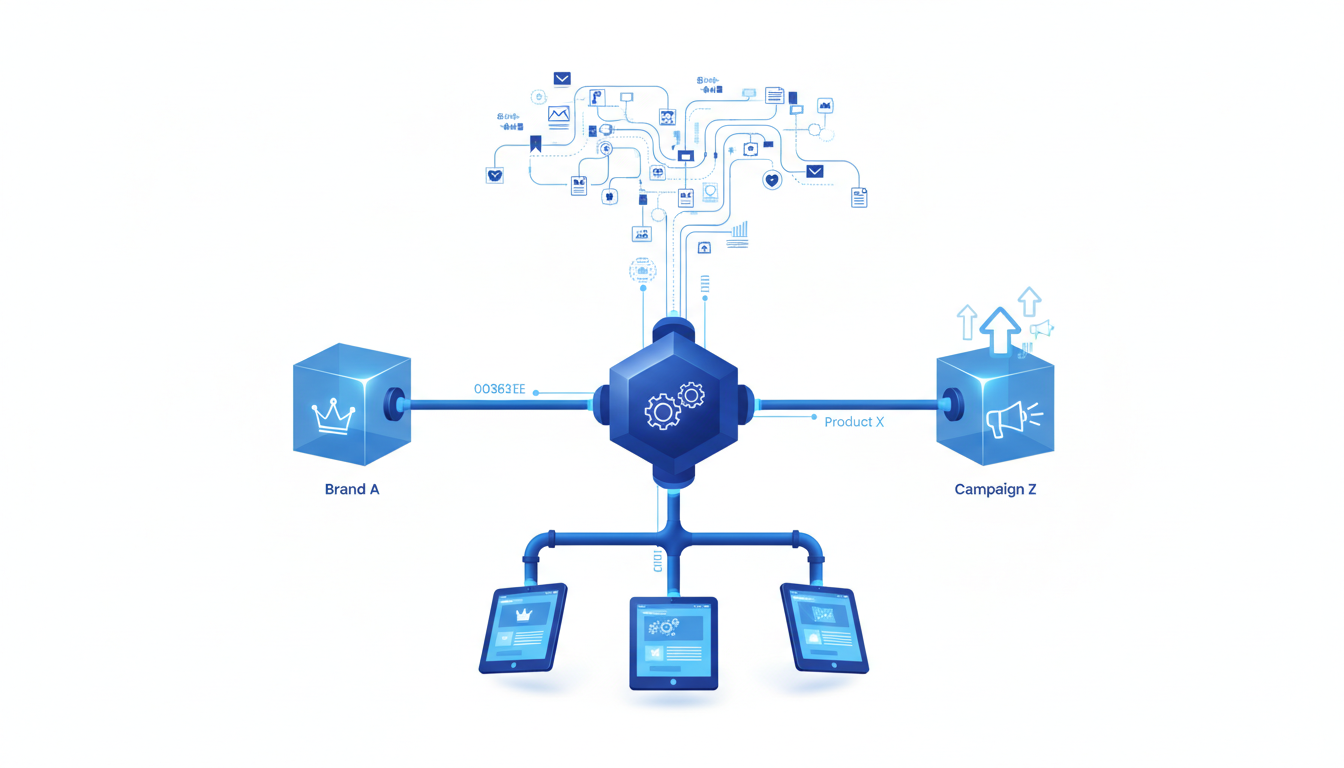
When managing multiple brands, products, or campaigns, maintaining brand consistency is essential. Quicklogo can act as your “logo version control system” to help you effortlessly navigate these challenges.
Differentiate Parent Brand From Sub-Brands
A clear distinction between your parent brand and sub-brands ensures each maintains its own identity while staying connected. Use Quicklogo’s account-based workflow to organize logos by project. Here’s how:
- Create Separate Folders: Use Quicklogo to align your logo storage by setting up folders for your parent brand and each sub-brand. This keeps them distinct and easy to access.
- Consistent Naming Conventions: Adopt a standardized naming convention across brands, like "ParentBrand_Logo" and "SubBrand_ProductA_Logo." This consistency aids in quick retrieval and reduces confusion.
Organizing Seasonal and Campaign Variations
Your brands will evolve, and campaigns will come and go. Quicklogo’s ability to iterate on past designs allows you to manage campaign logo variations effectively:
- Seasonal Updates: Save and label each seasonal iteration, such as “Brand_Logo_Winter2023” or “CampaignX_Summer.” This ensures you can easily revisit and adapt previous designs.
- Campaign-specific Logos: For a campaign, perhaps a holiday sale, generate logos that highlight the specific theme or message. Store these as “CampaignName_Logo_Date” to maintain clarity.
Leveraging Multi-format Downloads
Understanding the right format for each platform—whether it be web, social media, or print—ensures brand consistency:
- Web and Social: Download logos optimized for digital use to maintain resolution and clarity across platforms.
- Print Needs: Ensure you have high-resolution versions for print, labeled clearly in Quicklogo, such as “Print_HQ” or “Web_LQ,” to avoid misapplication.
Key takeaway: An organized, systematic approach using Quicklogo transforms the complexity of managing multiple brands into a streamlined workflow, preserving brand integrity across all platforms.
By setting up a clear branding asset management strategy with Quicklogo, you strike the perfect balance between maintaining consistent branding and allowing for creative exploration across your various brands and campaigns.
Governance: Ownership, Access, and Keeping Work from Getting Stuck
When managing your Quicklogo account, ensuring that ownership and access are effectively handled is crucial for smooth operations. Here's how to keep your logo projects organized and accessible without bottlenecks.
Best Practices for Managing Account Credentials
The cornerstone of maintaining streamlined access to your Quicklogo account is proper credential management. Here’s what you should focus on:
- Centralize Credentials: Store your login information in a secure, centralized location, such as a password manager. This ensures that team members with permission can access the account without unnecessary delays.
- Regular Updates: Encourage a routine for updating passwords. Aim to refresh credentials every three to six months to maintain security.
- Role-Based Access: Assign roles and access levels appropriately. Not every team member needs the same level of access. Only those involved in active projects should have full access to logo generation and editing features.
Key takeaway: Proper credential management can prevent delays and ensure only the right team members access your Quicklogo account at any given time.
Implementing an Effective Handoff Checklist
An organized handoff checklist is essential to prevent work from getting stuck when transferring project responsibilities between team members. Include these steps in your checklist:
- Document Everything: Maintain an iteration log where each step, decision, and version is documented. This comprehensive history makes it easier to pick up where others left off.
- Define Ownership: Clearly outline who is responsible for each aspect of a project. Knowing who owns which part of the process helps in managing transitions smoothly.
- Share Knowledge: Hold a handoff meeting to transfer knowledge and context for ongoing projects. This meeting should cover current iterations, next steps, and any potential challenges.
Key takeaway: An effective handoff process not only transfers access but also ensures continuity and understanding, so projects remain uninterrupted.
With these practices in place, you can manage your Quicklogo account effectively, ensuring that logo asset management is seamless and avoiding pitfalls that can lead to stalled projects. By centralizing credentials and implementing a robust handoff checklist, your team can work efficiently and confidently on repeat projects without unnecessary barriers.
Common Mistakes (and Fixes) When Using a Logo Generator Account
Navigating the world of logo generator accounts, like Quicklogo, can be a breeze with the right approach. Yet, some common pitfalls can hinder your experience. Here, we’ll explore these mistakes and how you can effortlessly sidestep them.
Avoid Scattered Logo Storage
Key Insight: Centralization is crucial.
It's all too easy to let your logo experiments scatter across multiple devices or cloud services. To combat this, make full use of Quicklogo’s integrated storage. Keep all your logo projects within your Quicklogo account. This ensures every iteration is easily accessible, whether for a sudden rebrand or a nostalgic revisit. By centralizing, you avoid the frustration of hunting for that “perfect” logo you made last month.
Takeaway: Treat your Quicklogo account as a single source of truth for all logo projects.
Use Consistent Naming
Key Insight: Naming conventions prevent chaos.
Random file names like "logo_final_v2" can lead to confusion down the line. Instead, adopt a consistent naming convention. For example, use "ProjectName_Logotype_Version_Date" — it’s descriptive and ensures clarity. This habit not only aids in retrieval but also helps team members understand the logo versions at a glance.
Tip: Implementing a straightforward naming scheme fosters efficient logo versioning and simplifies collaboration.
Keep Ownership and Access Clear
Key Insight: Define roles and responsibilities.
When multiple team members are involved, confusion over who owns or can access specific logos can stall progress. Establish clear ownership rules in your Quicklogo account settings. Appoint a team member to oversee logins, credit allocations, and project continuity. Regularly update access permissions to reflect personnel changes.
Guideline: Consistency in ownership roles supports seamless creative asset management, ensuring projects don’t get stuck due to misplaced access.
By centralizing your logo assets, following consistent naming conventions, and maintaining clear access controls, you set yourself up for success. Quicklogo’s built-in features make these best practices effortless. For a more comprehensive guide on optimizing your logo workflows, explore 7 Fast Logo Maker Workflows to Get a Logo Today and streamline your brand management.
FAQ: Quicklogo Account Workflow Questions
Navigating Quicklogo's account-based workflow is essential for managing your logo projects efficiently. Here, we tackle some common questions to help you get the most out of your Quicklogo experience.
How does logo storage work in Quicklogo?
Quicklogo provides built-in logo storage as part of its service. This means every logo you generate is saved within your account, allowing you to easily return to previous designs without starting from scratch. Once you've created a logo, it's stored securely and can be accessed anytime upon signing into your Quicklogo account. This feature is invaluable for maintaining continuity and enables quick, hassle-free iterations on your designs over time.
What if I lose access to my account?
If you find yourself unable to access your Quicklogo account, don't worry. Start by going to the Quicklogo sign in page and selecting the "Forgot Password?" option. You’ll receive an email with instructions to reset your password. Ensure you use the same email address associated with your account. Keeping your credentials updated and secure can prevent access issues—consider using a reliable password manager for safe storage.
How can I manage multiple projects simultaneously?
Handling various projects is straightforward with Quicklogo's organized storage system. You can manage different projects by creating separate folders for each within your account. This way, you can efficiently keep track of various brand iterations and campaign logos. A neat structure not only supports easy access but also encourages consistent brand evolution and prevents confusion. Maintaining a simple naming convention for your folders—like including project names and dates—can further enhance this process.
Pro Tip: Make use of Quicklogo’s account system to regularly update and review your design portfolios. This practice not only ensures brand consistency but also simplifies collaboration with team members, allowing everyone to stay on the same page.
By understanding these facets of Quicklogo's account-based system, you can harness the full potential of the platform to manage and iterate on your branding assets with confidence.
Wrap-Up: Your 30-Minute Operating System + Next Step
You've journeyed through a detailed walkthrough of managing your Quicklogo account for repeat projects. Now, let's distill this information into a streamlined, 30-minute system that empowers you to maximize Quicklogo's features efficiently.
**1. Sign In and Navigate: Start by logging into your Quicklogo account. Once inside, locate your dashboard, where all your saved projects and logo generations reside. This log-in step is crucial as it centralizes your branding efforts in one place.
**2. Locate Past Projects: Quickly find the project you want to revisit by navigating through your organized files. Ensure each project is named consistently—use a naming convention template like "ProjectName_Date_Variant" to keep track of different iterations seamlessly.
**3. Choose a Baseline for Iteration: Identify a previous logo version you approved or favorited. Quicklogo’s storage capabilities make this easy by allowing you to return to past designs without hassle. Having a clear starting point simplifies the iterative process, so you're building on a solid foundation, not reinventing the wheel.
**4. Iterate with Confidence: Considering your current brand direction, decide whether to regenerate a new set or edit an existing logo. Use Quicklogo’s customization options to tweak colors, styles, or layouts as needed.
**5. Download and Organize: Export your finalized logo in the required formats for web, social media, or print. Create a structured folder system—both locally and on shared drives—using folders like "Logos_Web," "Logos_Print," and "Old_Iterations" to maintain clarity across different projects and teams.
**6. Implement Across Projects: Use the refined logos across forthcoming initiatives, ensuring brand consistency and aiding in quick deployments, whether for a new product, rebrand, or campaign spin-up.
By mastering this account-based workflow, you make the most out of your logo generator account, ensuring your brand's assets are always at your fingertips. Ready for a hands-on experience? Jump into Quicklogo and apply this system to your latest project, enhancing your branding process instantly.
For more insights and detailed step-by-steps, revisit the How to Generate a Logo Online with Quicklogo (Step-by-Step Guide).
Frequently Asked Questions
Why use an account-based logo workflow?
It ensures logos are organized, accessible, and iterations are streamlined.
How does Quicklogo handle logo storage?
Logos are stored within your account, as per the terms, for easy retrieval and iteration.
What are the common pitfalls in logo versioning?
Scattered storage and inconsistent naming can lead to loss and confusion.
How do I manage logo files for different campaigns?
Use structured folders and naming conventions to keep assets organized by campaign.
Final Thoughts
Managing your Quicklogo account efficiently can transform how you handle repeat logo projects. Here’s a simple 30-minute checklist to optimize your workflow:
- Sign in to your Quicklogo account.
- Locate your project in the dashboard.
- Pick a baseline logo option.
- Iterate on your design as needed.
- Download the final version.
- Organize files for easy access later.
By leveraging Quicklogo’s streamlined process, you ensure that your branding assets remain organized and iterations are seamless. To get started, sign in to Quicklogo and apply this approach to your most recent logo project today.
Back to all posts