

10 Logo Design Mistakes to Avoid When Using AI Logo Makers
Learn the 10 most common AI logo design mistakes and find out how to correct them using Quicklogo's seamless process for a professional finish.
Quicklogo Team
10 Logo Design Mistakes to Avoid When Using AI Logo Makers
Imagine this: you’ve just launched a startup and need a logo fast. You turn to an AI logo maker, generate 30 options, choose one that looks ‘cool,’ and slap it on your website. But something’s off. It’s unreadable, generic, or doesn’t fit with other branding elements. If this scenario feels familiar, you’re not alone. AI logo makers can be a lifesaver, but they often come with pitfalls that are easy to overlook.
In this post, we’ll explore the most common logo design mistakes you might encounter with AI tools—specifically geared toward non-designers. We’ll unpack why these issues arise, offer a quick diagnostic test for each, and guide you through an efficient iteration loop using Quicklogo's seamless workflow. By the end, you'll have a reliable, repeatable process to ensure your logo stands out and serves your brand effectively. Say goodbye to generic designs and hello to a logo that truly fits.
Introduction: AI Logo Design Challenges for Non-Designers
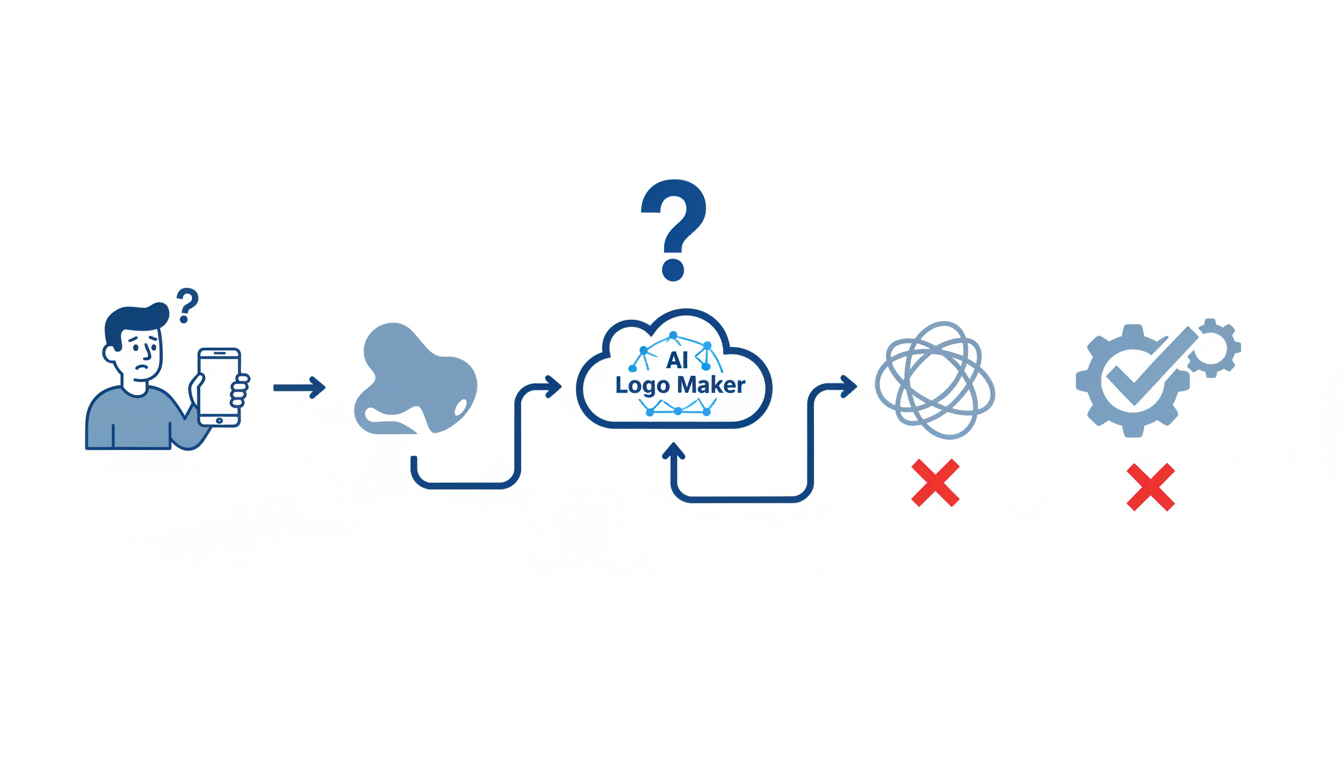
If you've ever used an AI logo maker, you're probably familiar with the moment of uncertainty after generating several designs. Everything might look "fine," but placing one on your website header can quickly reveal hidden issues—unreadability, generic looks, or poor quality across different platforms. These are common AI logo mistakes that non-designers often encounter, and understanding why they occur is key to avoiding them.
AI tends to optimize for plausible defaults. This means it picks design elements that suit a wide range of businesses but often results in generic logos lacking distinctiveness. Since AI algorithms are trained on thousands of logos, they can sometimes regurgitate patterns that are too familiar, making your brand blend into the sea of other startups.
A quality assurance loop is crucial in this process. You don't need to become a design expert; instead, adopt a simple QA process. This involves quick diagnostic tests like the thumbnail test, grayscale test, and inverted background test that will save your logo from being just another unmemorable mark.
With Quicklogo, you can implement a practical iteration loop: generate → select → customize → download. Start by generating multiple options—this gives you a range to work from. Then, under each option, tweak elements that AI might have missed. Focus on uniqueness, scalability, and cross-platform functionality.
Remember, the goal is not to achieve a perfect design but to create something that is readable, distinct, and consistent. Equip yourself with this checklist every time you use AI, and you're on your way to harnessing technology for your brand’s unique identity.
AI Logo QA Loop: A 60-Second Testing Framework
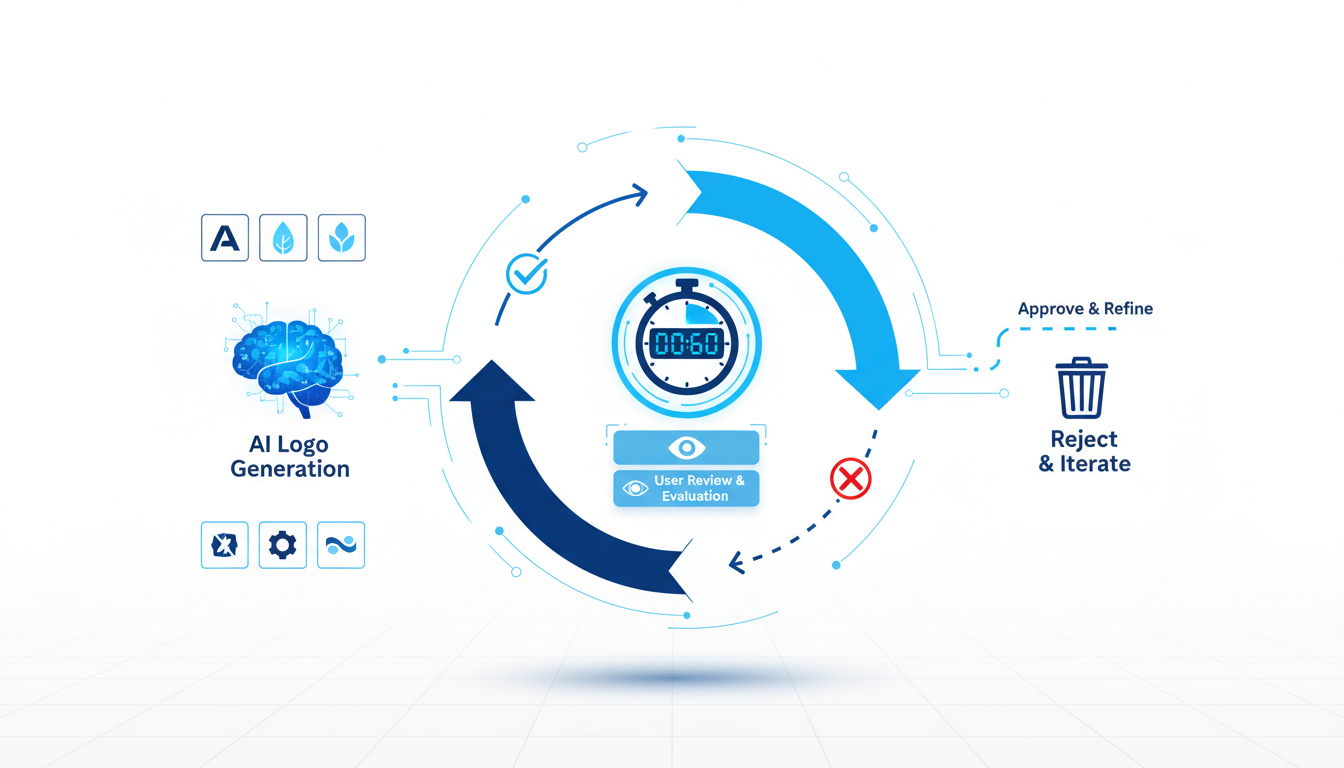
Creating a logo with Quicklogo’s AI tool might be swift, but ensuring its quality requires a bit more attention. Let’s dive into some easy diagnostic tests that can help you assess if your AI-generated logo is up to the mark — all within 60 seconds.
Key Diagnostic Tests
Thumbnail Test: Can your logo hold its own at a small size? Shrink your logo to the size of a thumbnail, like those you’d see in a favicon. If it loses clarity or becomes unrecognizable, it's lacking scalability. AI tools might generate intricate designs that look great in detail but falter when minimized.
Grayscale Test: Convert your logo to grayscale to evaluate its contrast and legibility. This simple trick reveals if a logo’s design relies too heavily on color, which can compromise its readability, especially in black-and-white scenarios like print documents.
Squint Test: Literally squint your eyes while looking at your logo. This helps determine if key elements stand out and if your logo maintains its identity at a distance. If it all blurs together, the elements might be too cluttered, which is often a result of AI optimizing for aesthetic complexity over simplicity.
Why AI May Stumble
AI-generated logos often default to patterns and templates that look visually appealing but aren't always practical. Since machine learning models are trained on thousands of logos, they might focus more on stylistic averages than the functional uniqueness your brand needs.
Iteration with Quicklogo
Here’s how you can leverage Quicklogo’s workflow to address these gaps:
Generate Options: Quickly produce multiple logo variants.
Select with Tests: Apply the thumbnail, grayscale, and squint tests to your selections. Use these criteria to narrow down your options.
Customize: Adjust elements such as spacing, icon size, and font weight within Quicklogo to enhance legibility and simplicity.
Download and Recheck: Once you've refined to satisfaction, save your logo in multiple formats and reapply the tests to ensure consistent quality across uses.
With these steps, your AI-powered logo won’t just be another face in the crowd—it will stand out with clarity and purpose. For more detailed guidance, check out our post on how to generate a logo online with Quicklogo.
Mistake #1: Choosing Generic Icons
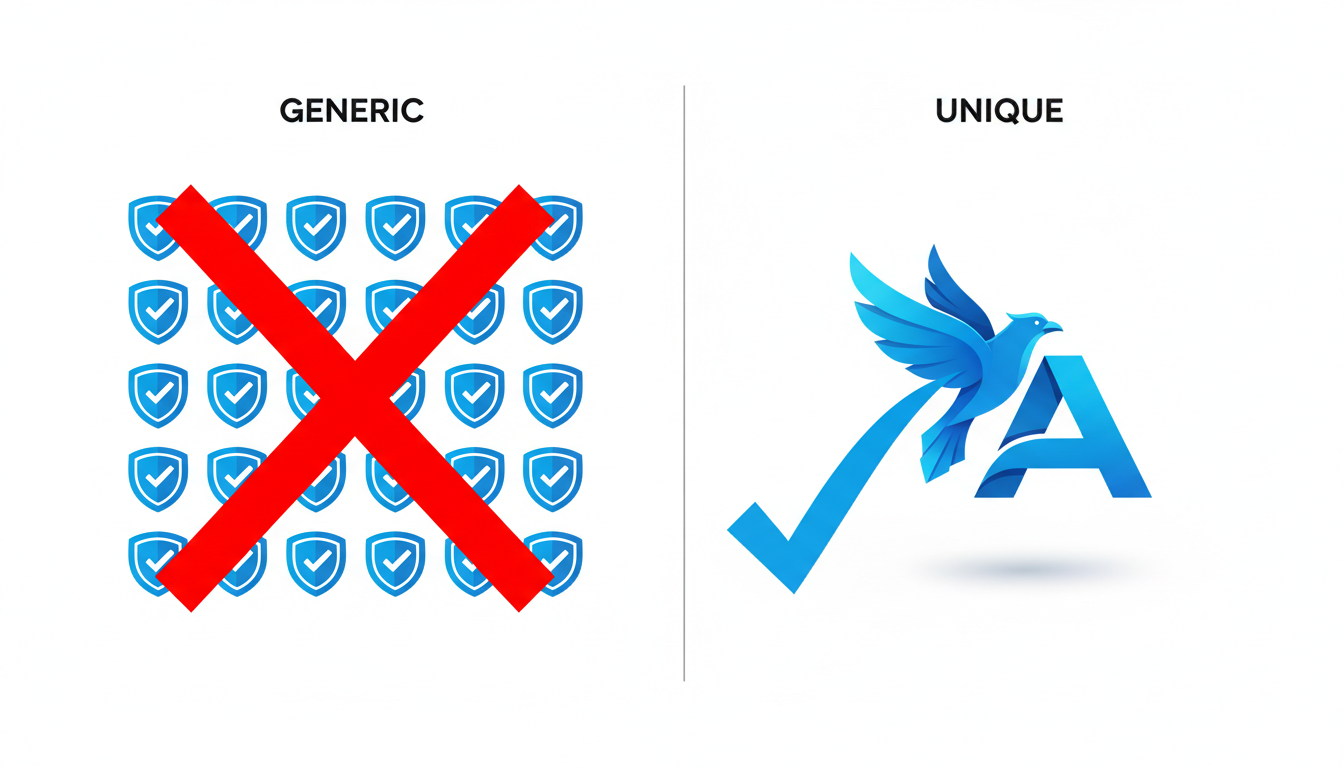
Generating logos with AI tools can often result in icons that feel bland and uninspired. Avoiding generic icons is crucial for crafting a distinctive brand identity. Here’s how to tackle this challenge, even if you’re not a designer.
Why AI Generates Generic Icons
AI logo makers like Quicklogo use models trained on numerous professional logos. However, these models can prioritize broad appeal—resulting in designs that can seem repetitive. The output tends to stick with safe and standardized symbols, which might lack the uniqueness you need.
Recognizability and Uniqueness Tests
To identify if your icon is too generic, perform a quick recognizability test:
Thumbnail Test: Shrink your logo down to favicon size. If the icon loses its distinct features, it might blend in with countless others.
3-Second Test: Show it to someone for a brief three seconds. Ask them what they saw. If they struggle to describe it or confuse it with another brand, it’s time to rethink the design.
How to Fix It with Quicklogo
Thankfully, refining your icon doesn’t require a design degree. Here’s an easy iteration loop using Quicklogo:
Generate Multiple Options: Start by creating various logo options. Quicklogo allows you to do this in seconds, offering multiple directions from a simple business description.
Select Thoughtfully: Avoid picking the first “cool” option. Instead, look for potential in uniqueness—something that stands out.
Customize: Use Quicklogo’s built-in customization feature. You can tweak elements to align better with your brand’s aesthetic. Consider adjusting shapes, adding unique patterns, or integrating initials.
Download and Test: Once you’re satisfied, export your logo in multiple formats. Ensure it retains its distinctiveness across different sizes and backgrounds.
Quicklogo is designed to help you move beyond generic symbols, offering you the ability to refine and personalize. By following this simple approach, you’re not just generating a logo; you’re crafting a unique brand identity.
Takeaway: A unique logo is more recognizable and memorable. Leverage Quicklogo’s customization to break away from generic icons and create something truly representative of your brand.
Mistake #2: Poor Contrast and Color Clashes
Ever generated a logo using an AI logo maker and ended up with a design that looked great on-screen but was unreadable on business cards or social media headers? That's often due to poor contrast and color clashes, a common logo design mistake.
What It Looks Like in AI Outputs
AI-generated logos can sometimes feature color combinations that seem vibrant but lack adequate contrast. The result? Text or elements that blend into the background, making the logo unreadable. You might spot a striking gradient or an eye-catching palette at first glance, but when applied in real-world scenarios, they lose impact.
Why It Happens with AI
AI logo makers, like Quicklogo, typically start with default color schemes optimized for broad appeal and efficiency. The machine learning models are trained on vast datasets, which sometimes causes them to favor safe, generic color pairings. These defaults can work in controlled environments but may not translate well across varied media and contexts.
A Quick Diagnostic Test
To ensure your logo's color scheme works everywhere, perform a simple contrast test. View the logo on both light and dark backgrounds and squint your eyes slightly. Do key elements maintain their visibility and impact? If you see elements vanishing or mingling with the background, the contrast needs adjustment.
Iteration Loop with Quicklogo
Generate: Use Quicklogo to produce multiple logo variations quickly. Don’t settle on the first one; explore the palette it offers.
Select: Choose logos that stand out for both their design and color clarity.
Customize: Dive into the customization feature. Adjust brightness and saturation to improve readability. Focus on high-contrast combinations like dark text on a light background or vice versa.
Download: Once satisfied, download the logo in multiple formats to ensure it maintains contrast across different uses.
Key Takeaways
Ensure readability: A logo must be visible and clear, whether displayed as a tiny favicon or a billboard. Using a strong color contrast is critical for retaining its effectiveness and quality.
By equipping yourself with this knowledge and utilizing Quicklogo’s workflow, you can avoid these common logo mistakes and create a design that not only looks unique but functions consistently across all your branding materials.
Mistake #3: Unreadable Wordmarks at Small Sizes
Using an AI logo maker like Quicklogo can be a game-changer, but watch out for legibility issues at small sizes! One common mistake is ending up with unreadable wordmarks. This often happens because AI tools optimize for aesthetic appeal rather than functional readability.
What it Looks Like
You’ve created a sleek logo, and on larger screens, it looks great! But when downsized—think favicon or mobile view—the text becomes difficult to read or even disappears into the background.
Why it Happens
AI logo makers, including Quicklogo, are trained on visual datasets, prioritizing designs that look eye-catching. The AI might select fonts that are stylish at a large scale but impractical when reduced.
60-Second Readability Test
To diagnose this quickly:
Perform a thumbnail test by viewing your logo at a reduced size, like that of a mobile app icon. Is the text still legible?
Try the squint test: squint your eyes or step back from the screen. Can you still recognize the text?
Key takeaway: A logo isn't effective if it can't be read in all contexts.
Fixing the Issue with Quicklogo
You can easily refine this within Quicklogo’s workflow:
Generate: Create several logo iterations with varying typefaces.
Select: Choose options with bolder, simpler fonts.
Customize: Adjust font size and weight as needed.
Download: Ensure each version passes the readability test.
Using these steps not only fixes readability issues but also ensures your brand stays consistent across all platforms. For more details on logo creation, check out our step-by-step guide on generating a logo online with Quicklogo.
Mistake #4: Ineffective Logo Variations for Different Backgrounds
AI-generated logos often look great in isolation but start struggling when faced with different background colors. A logo that dazzles on a light-themed website might disappear on a dark social media banner. This inconsistency comes from the AI's penchant for optimizing designs for a single environment, leading to logos that don't adapt well.
What it looks like: You've got your logo ready, but the moment you place it on a dark header or a patterned backdrop, it either becomes non-existent or clashes horribly with the surroundings.
Why it happens with AI: AI logo makers generally generate outputs that follow a standard process, aiming for average acceptability across various scenarios. Unfortunately, they may not account for the specific background color variations you’ll face unless prompted explicitly. AI tends to give less consideration to versatility, focusing more on generating something visually appealing in its original preview context.
Quick diagnostic test (<60 seconds): Perform the inverted background test. Save a copy of your logo and place it onto different background colors. Check for clarity and visibility: does it still stand out?
Iteration loop using Quicklogo:
Generate several versions of your logo, including variations with different color schemes.
Select diverse color options that might suit different backgrounds.
Use Quicklogo’s customize feature to tweak contrast and color balance. Look to adjust colors so the logo maintains visibility when placed on both light and dark backgrounds.
Download the final versions. Make sure you have both dark and light variants ready for different applications.
By adopting Quicklogo’s workflow — thanks to its ability to generate multiple options quickly — you can safeguard against ineffective logo variations. Leverage its editing capabilities to ensure your logo remains sharp and clear, regardless of the context.
Key takeaway: Always test your logo on a range of background shades before finalizing it. This ensures visibility and brand consistency across all platforms. For more tips on generating effective logos, visit our step-by-step guide on designing a logo without a designer.
Mistake #5: Overly Complicated Designs
When using AI logo makers, one common pitfall is ending up with an overly complicated design. These logos might include intricate patterns or too many elements, making them visually overwhelming.
What It Looks Like
With AI-generated logos, complex designs often emerge when the algorithm tries to incorporate all your input details into one logo. The output may seem impressive at first glance but can quickly become a headache when applied to smaller formats.
Why It Happens with AI
AI logo makers like Quicklogo are trained on thousands of logos and may generate complex designs by attempting to be visually striking or unique. However, without human intuition, they can miss the mark on simplicity and practicality.
Quick Diagnostic Test
Perform a quick thumbnail test: Shrink the logo to the size of a favicon or mobile app icon. If the elements blend into an indistinct blob or if any text becomes illegible, the design is too complicated.
How to Fix It
Simplifying a complex logo is straightforward with Quicklogo’s workflow:
Generate multiple options: Use Quicklogo to create several versions of your logo, focusing on simpler elements.
Select the simplest version: Pick the design with the least intricate details that still represents your brand effectively.
Customize: Refine the chosen design by removing unnecessary elements. Focus on the balance between the icon and wordmark for better scalability.
Download the updated logo in multiple formats to ensure it maintains clarity across all uses, from websites to business cards.
<!— SECTION_IMAGE: A visual showing two logos, one complex and one simplified, annotated with arrows pointing out complexity vs. clarity. —>
Incorporating these steps into your design process helps ensure your logo remains distinctive and functional in any context. Quickly iterate within Quicklogo to find the right balance—this is the key to avoiding generic logo pitfalls.
For more detailed guidance, explore our step-by-step guide to launching a logo.
Mistake #6: Logo Spacing and Alignment Issues
When using AI logo makers, spacing and alignment mishaps are common culprits that can undermine your logo's professional appeal. Proper layout consistency is essential for creating a harmonious and balanced design.
What It Looks Like
AI-generated logos might sometimes suffer from awkward spacing between elements—such as text being too close to icons or misaligned letters. This can result in logos looking cluttered or uneven, impacting both visual appeal and legibility.
Why It Happens with AI
AI models, like those used in Quicklogo, generate logos based on learned patterns from vast datasets. While these models are adept at mimicking design principles, they are not infallible. The spacing and alignment issues occur because the algorithm may prioritize aesthetic patterns over functional design, leading to discrepancies.
Quick Diagnostic Test (<60 seconds)
Perform a simple "thumbnail test": shrink your logo to a small size and observe its elements. If it appears messy or elements converge too closely, spacing adjustments might be needed. This quick test allows you to spot misalignments and cramped spacing at a glance.
How to Fix It
Generate: Use Quicklogo to create multiple logo options in seconds.
Select: Choose a design with natural spacing between elements. Look for balance and consistent alignment across different components.
Customize: Within Quicklogo, adjust the positioning of your logo elements:
Use grid lines: They help align text and icons better.
Increase padding: Give elements room to breathe by introducing more whitespace.
Focus on symmetrical spacing to maintain balance.
Download: Once satisfied, export the logo in multiple file formats, ensuring it retains its harmony at any size.
With these adjustments, your logo will look more polished and professional, aligned perfectly to enhance brand perception. This method leverages Quicklogo’s customization tools to address specific spacing and alignment concerns without needing extensive design expertise.
Takeaway: Always prioritize visual harmony by checking spacing and alignment; these elements are key to making your logo scalable and aesthetically pleasing across various formats.
Mistake #7: Overuse of Default Templates
Relying too heavily on default templates is a common pitfall when using AI logo makers. These templates can lead to logos that feel generic and lack the distinctiveness your brand needs to stand out. But how does this happen in AI-generated designs, and how can you avoid it?
What It Looks Like in AI Outputs
When you use an AI logo maker, you might notice that several outputs look very similar. Common indicators include:
Frequent use of generic icons like globes, leaves, or abstract shapes that aren’t unique to your brand.
Standardized layouts, such as a centered icon with your business name underneath, that appear in many outputs.
Repeated color schemes that feel more like 'default settings' rather than tailored to your brand identity.
Why It Happens with AI
AI logo makers, like Quicklogo, rely on machine learning models trained on thousands of professional logos. While this provides a wealth of design knowledge, it also means AI tends to favor ‘safe defaults’ that can appeal broadly but aren't tailored to specifics. The goal is often to generate swiftly usable options, leading the AI to reproduce popular motifs.
Diagnostic Test: The 60-Second "Distinctiveness Check"
To test the uniqueness of your logo in less than a minute, try the 3-Word Brand Test:
Describe your brand in three unique words.
Compare your chosen logo against these descriptors. Does it visually and conceptually align with your brand's essence?
If it doesn't, your logo might be hinging too much on default templates.
How to Fix It: Using Quicklogo
Generate Multiple Options: Start by generating several logos quickly using Quicklogo. This gives you a broad base to work from.
Select Thoughtfully: Choose a logo that has potential but might need tweaking. Focus on icons and layouts that feel less 'typical.'
Customize for Uniqueness: Use Quicklogo's customization features to adjust colors, fonts, and other elements. Aim to reflect your brand’s unique characteristics more distinctly.
Download and Review: Once satisfied, download the logo in multiple formats, ensuring it meets your needs across various platforms.
By following these steps, you can transform a basic AI-generated logo into something more personalized and brand-appropriate. This approach helps prevent your final design from blending into the sea of generic logos.
Mistake #8: Improper Layering and Visual Hierarchy
When you're using AI logo makers like Quicklogo, improper layering and visual hierarchy can be a subtle yet significant pitfall. This mistake manifests in AI outputs when different elements of the logo—such as text, icons, and shapes—compete for attention rather than guiding the viewer’s eye in a natural order.
What it Looks Like in AI Outputs
In logos with poor visual hierarchy, you might notice that the brand name competes with the icon, or that secondary text elements draw more attention than they should. The result is a visually overwhelming design that can confuse or tire the viewer.
Why it Happens with AI
AI logo makers are powerful, but they don’t always understand the nuances of human design choices. They often generate combinations based on a vast database, focusing on plausible defaults rather than distinctive elements, leading to generic logo symbols with insufficient depth.
A Quick 60-Second Diagnostic Test
Perform the squint test. Simply squint your eyes while looking at the logo. Ideally, the primary message or brand name should stand out. If multiple elements blur together indistinctly, you likely have a layering issue.
How to Fix It with Quicklogo
Generate multiple logo options using Quicklogo’s user-friendly interface.
Select a logo where the main message is clear even when squinting.
Customize the selected logo by adjusting sizes, positions, and colors to emphasize key elements.
Download the refined version in multi-format files to ensure consistency across platforms.
By integrating these checks into Quicklogo’s workflow (generate → select → customize → download), you can iteratively refine your logo design, ensuring your brand message is conveyed clearly and effectively.
Here’s a screenshot of the Quicklogo interface to guide you through this process:
Using these steps, you can maintain a professional and polished look, keeping your logo distinct and impactful without needing a deep design background.
Mistake #9: Export Problems Across Platforms
When using AI logo makers like Quicklogo, exporting your logo correctly can make or break its effectiveness across various platforms. Here’s how to spot and fix export issues:
What It Looks Like
Your logos might look great on some devices but appear pixelated or distorted on others. Perhaps your website version is perfect, but social media thumbnails look fuzzy or off-color.
Why It Happens
AI-generated logos often default to formats that aren’t optimized for every use case. This is because AI focuses on convenience and speed, sometimes overlooking the need for diverse platform requirements like different resolutions or color profiles.
Quick Diagnostic Test
Here’s a fast way to see if your logo works across platforms:
Thumbnail Test: View your logo as a small-sized icon (like a social media profile).
Compare Colors: Ensure the color looks consistent on a website and mobile.
Grayscale Test: Convert to grayscale to check if contrast keeps it readable.
Fixing the Issue with Quicklogo
Generate Many: Start by creating multiple logos with Quicklogo. This gives choices if a variation fails.
Select & Customize: Choose a logo and customize the file formats per platform needs:
Use vector formats like SVG for scalability, crucial for print.
Opt for raster formats such as PNG for digital platforms while maintaining transparency.
Export in Multiple Formats: Ensure your logo is exportable in multi-format files (PNG, SVG, JPEG) through Quicklogo’s export options to suit different uses.
Iterate with Feedback: If a format doesn't work, return to Quicklogo's customization and iteration cycle to tweak as needed.
Pro Tip: Many find vector formats like SVG ideal for large-scale printing, while PNG works better for on-screen appearance due to its transparency support.
By following this process, you’ll convert potential export headaches into seamless cross-platform branding, making the most of Quicklogo’s ability to deliver multi-format flexibility effortlessly. Need more guidance? Check our generate logo online guide.
Mistake #10: Lacking Brand Consistency
When using AI logo makers like Quicklogo, one crucial mistake is lacking brand consistency. This can lead to a logo that feels out of place in different contexts. Let’s explore how this happens and how to fix it seamlessly within Quicklogo’s workflow.
What It Looks Like
A logo that changes appearance drastically across platforms can confuse your audience. Imagine using one variation on your website and another on social media, and they don’t quite match. This inconsistency dilutes brand recognition. Common signs include differing colors, unaligned fonts, and mismatched icon and text placements.
Why It Happens with AI
AI logo makers, while powerful, often optimize for convenience and variety. They provide multiple options that might appear distinct without a cohesive underlying theme. This diversity is useful but can lead to selecting options that don’t fit together harmoniously. AI can sometimes prioritize popular design trends over your unique brand personality.
Quick Diagnostic Test
Perform a quick 60-second brand consistency check:
Thumbnail Test: View the logo as a small icon. Does it retain its identity?
Color Palette Check: Compare the colors with your brand guidelines. Do they match?
Font Consistency: Ensure fonts are uniform across different logo versions.
Fixing It with Quicklogo
Generate: Start by creating multiple logo iterations in Quicklogo.
Select: Choose logos that adhere closely to your brand's color scheme and typography.
Customize: Use Quicklogo’s editing tools to align fonts and colors precisely. Focus on maintaining the same visual language.
Download: Export in multiple formats, ensuring that each logo variation looks consistent on various platforms.
Pro Tip: Quicklogo’s multiple format export allows for checking how logos appear on both digital and print mediums, ensuring consistency wherever it’s used.
By following this generate → select → customize → download flow, you ensure that your logo not only looks professional but also stays true to your brand, strengthening recognition and trust with your audience. For more detailed tips on creating a cohesive brand, check out our guide on designing a logo without a designer.
This way, you ensure that your logo not only looks good but truly represents your brand in every context.
Final Pre-Launch Checklist: Ensuring a Successful Logo
Before launching your logo into the world, running through a comprehensive checklist is crucial to avoid common logo design mistakes. Here's how to make the most of AI logo makers like Quicklogo to ensure a polished and professional outcome.
Comprehensive Logo Quality Checklist
Readability Test: Ensure your logo is legible at various sizes. Shrink it down to favicon size and check its readability. If it becomes a blur, consider simplifying the design.
Contrast Check: Run a grayscale test to see if your logo maintains contrast without color. This helps identify issues with tone that could affect how it appears on different backgrounds.
Background Test: Place your logo on both light and dark backgrounds. If it doesn’t pop on either, it may need adjustments in shadowing or outline color to maintain visibility.
Symmetry and Balance: Ensure elements within the logo are aligned perfectly. Uneven spacing or asymmetrical design can make the logo appear unprofessional.
Color Harmony: Analyze the color palette to ensure the hues don't clash. Use complementary colors to create a balanced and appealing aesthetic.
Integrating Quicklogo Final Review
Using Quicklogo simplifies this process significantly. Start by generating multiple logo options using Quicklogo’s fast AI capabilities. Select the most promising design and enter the customization phase. Here, you can adjust color schemes or tweak typography to meet all checklist criteria.
Checklist for Web and Social Deployment
Consistent File Formats: Ensure you download your logo in all the necessary formats (e.g., PNG for web, SVG for scalability). Quicklogo provides multi-format options to simplify this task.
Brand Guidelines: Create a simple guideline document outlining where each version of your logo should be used. This ensures consistency across platforms.
Social Media Fit: Test how your logo fits into social media squares and circle profiles. Adjust the size if necessary, ensuring no crucial elements are clipped.
Pro Tip: Before finalizing, run one more iteration cycle in Quicklogo’s generate → select → customize flow. This final step can help you refine and perfect any last-minute details.
By following this logo design mistakes checklist, you'll ensure your logo's quality, readability, and versatility across all platforms. For step-by-step guidance, refer to How to Launch a Logo Today: A Step-by-Step Guide Using Quicklogo.
Frequently Asked Questions
What are the common logo design mistakes when using AI?
Common mistakes include generic icons, poor contrast, and unreadable text at small sizes.
How can I test my AI-generated logo quickly?
Use tests like the thumbnail, grayscale, and squint test for quick assessments.
Why do AI logos often look generic?
AI models often use default templates and common symbols, leading to generic designs.
How does Quicklogo help with logo customization?
Quicklogo offers tools to customize colors, icons, and typography to better fit your brand.
Can AI logos be used across different platforms?
Yes, if exported in the right formats. Quicklogo provides multi-format delivery.
Final Thoughts
Incorporating AI tools like Quicklogo into your logo design process can lead to successful branding outcomes when you steer clear of common pitfalls. Remember, the aim isn’t just perfection but a logo that is readable, distinct, and consistent across various platforms.
Here's a quick QA checklist to ensure you're on the right track:
Is the logo easily readable?
Does it maintain distinction, even at different sizes?
Is it consistent with your overall brand aesthetic?
Has it been tested across all intended use cases?
Have potential cultural or contextual issues been considered?
As your next step, try running one iteration cycle using Quicklogo: generate, select, and customize your logo before downloading the final files. This process ensures you make thoughtful decisions and achieve the best results. For a detailed guide on using Quicklogo, check out our step-by-step guide and explore our comprehensive workflow to streamline your design journey.
Back to all posts